Google Play Store Product
Google Play Console is the platform for managing your Android applications, including in-app purchases and subscriptions. In Crosspay, you can create products that correspond to the in-app purchases or subscriptions you have set up in Google Play Console, and link them to entitlements to manage access to features or content in your apps.
There are 2 types of products you can create for the Google Play Store in Crosspay:
- Subscription: A product that grants access to features or content for a specific period
- One-Time Product: A product that can be purchased multiple times (consumable) or only once (non-consumable), such as in-game currency, one-time use items, or premium features.
Requirements
Section titled “Requirements”To create products for the Google Play Store in Crosspay, you need to have the following:
- A Google Play Console account with the necessary permissions to create and manage products.
- An app published in the Google Play Store in internal, closed, or open testing tracks, or in production. This is required to create subscription and one-time products.
Creating Subscriptions
Section titled “Creating Subscriptions”Subscriptions in the Google Play Store are created as subscription products. To create a subscription product in Crosspay, you need to first set up the subscription in Google Play Console, and then link it to an entitlement in Crosspay.
To create a subscription product in Google Play Console, follow these steps:
- Go to Google Play Console > Select your app, on the sidebar go to Monetize with Play > Products > Subscriptions.
- Click on the
Create subscriptionbutton. The form to create a new subscription will open.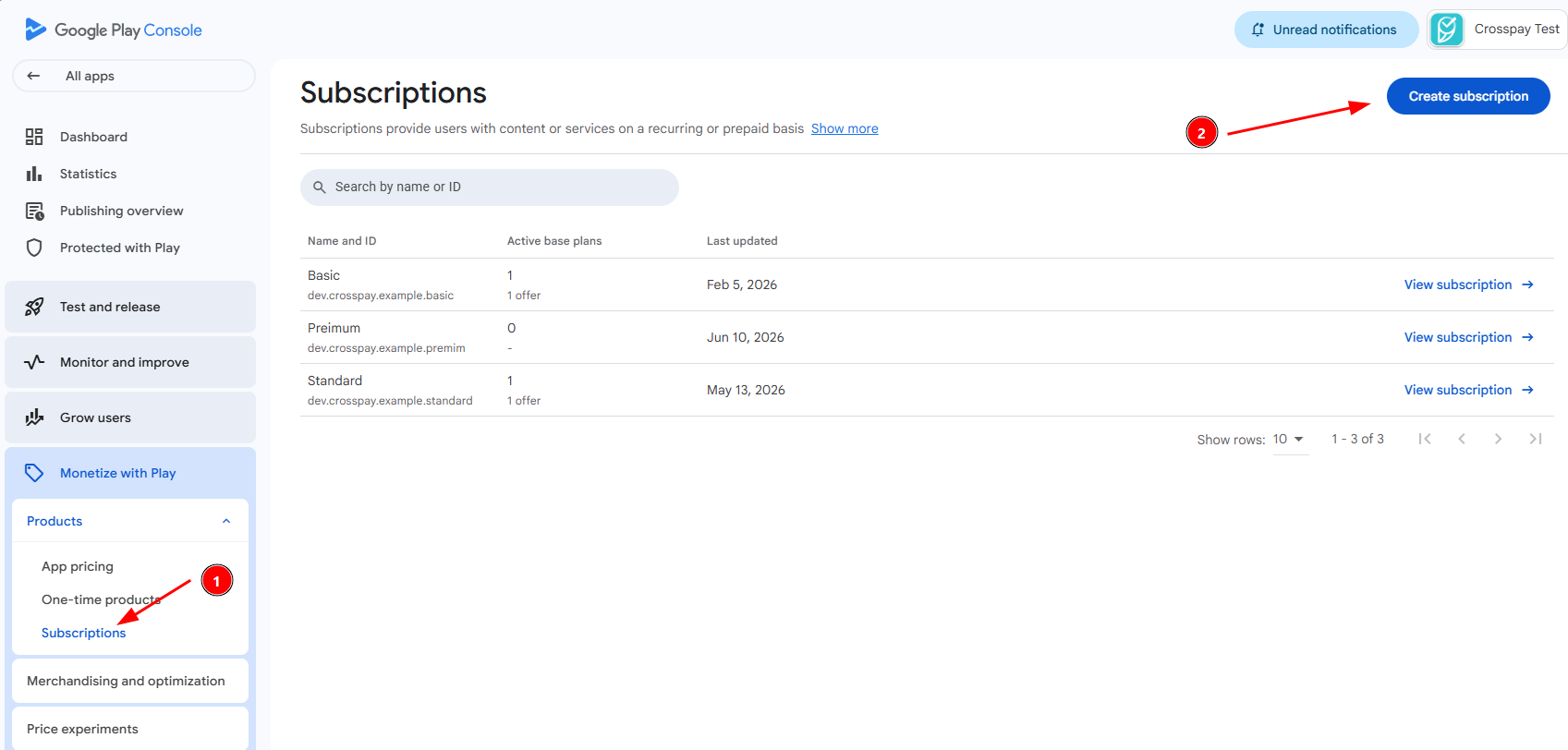
- Product ID: a unique identifier that you will use to link this subscription to an entitlement in Crosspay, e.g.
com.example.example.base_subscription. - Name: a good reference name for your subscription, e.g.
Premium Monthly.
- Product ID: a unique identifier that you will use to link this subscription to an entitlement in Crosspay, e.g.
- Add subscription benefits by clicking on the
Add subscription benefitoptions and filling in the required fields. - Now we need to create a base plan for the subscription.
- Click on the
Add base planbutton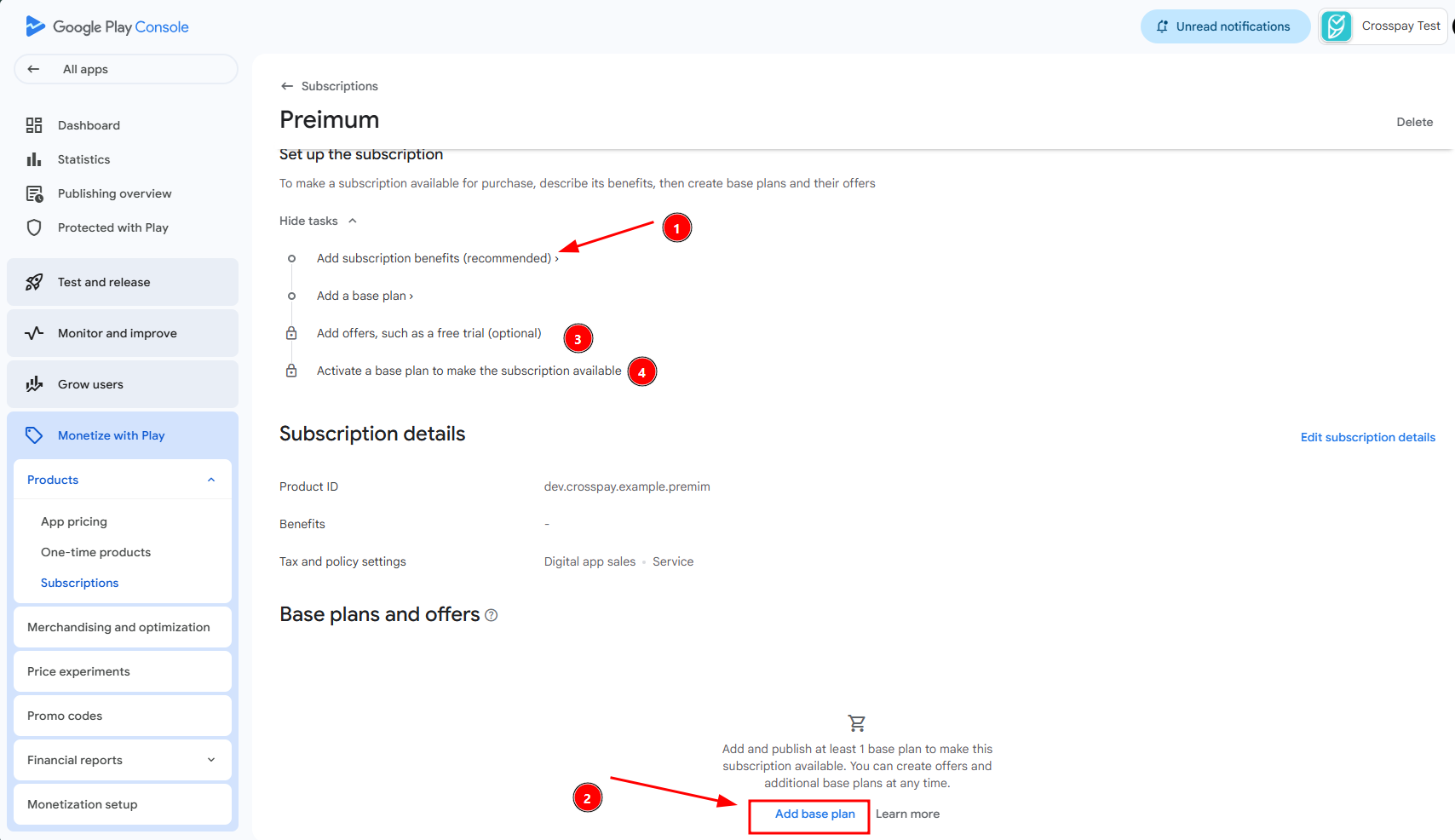
- Put the unique base plan ID, e.g.
premium_monthly - Select the
Typeof the base plan asAuto-renewing - Configure the billing period for the base plan, e.g.
1 month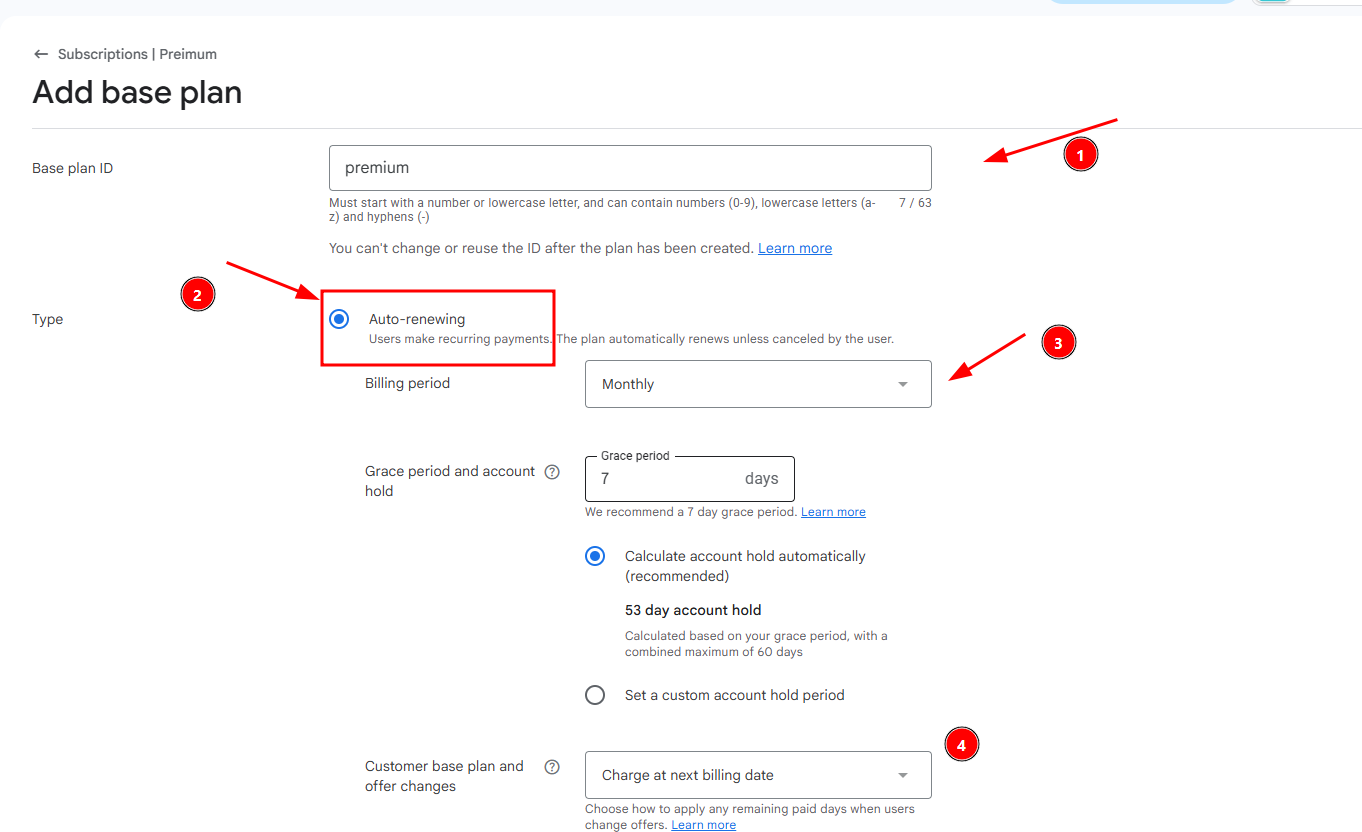
- Scroll down and Set the price for the base plan by clicking on the
Set pricebutton, and filling in the required fields.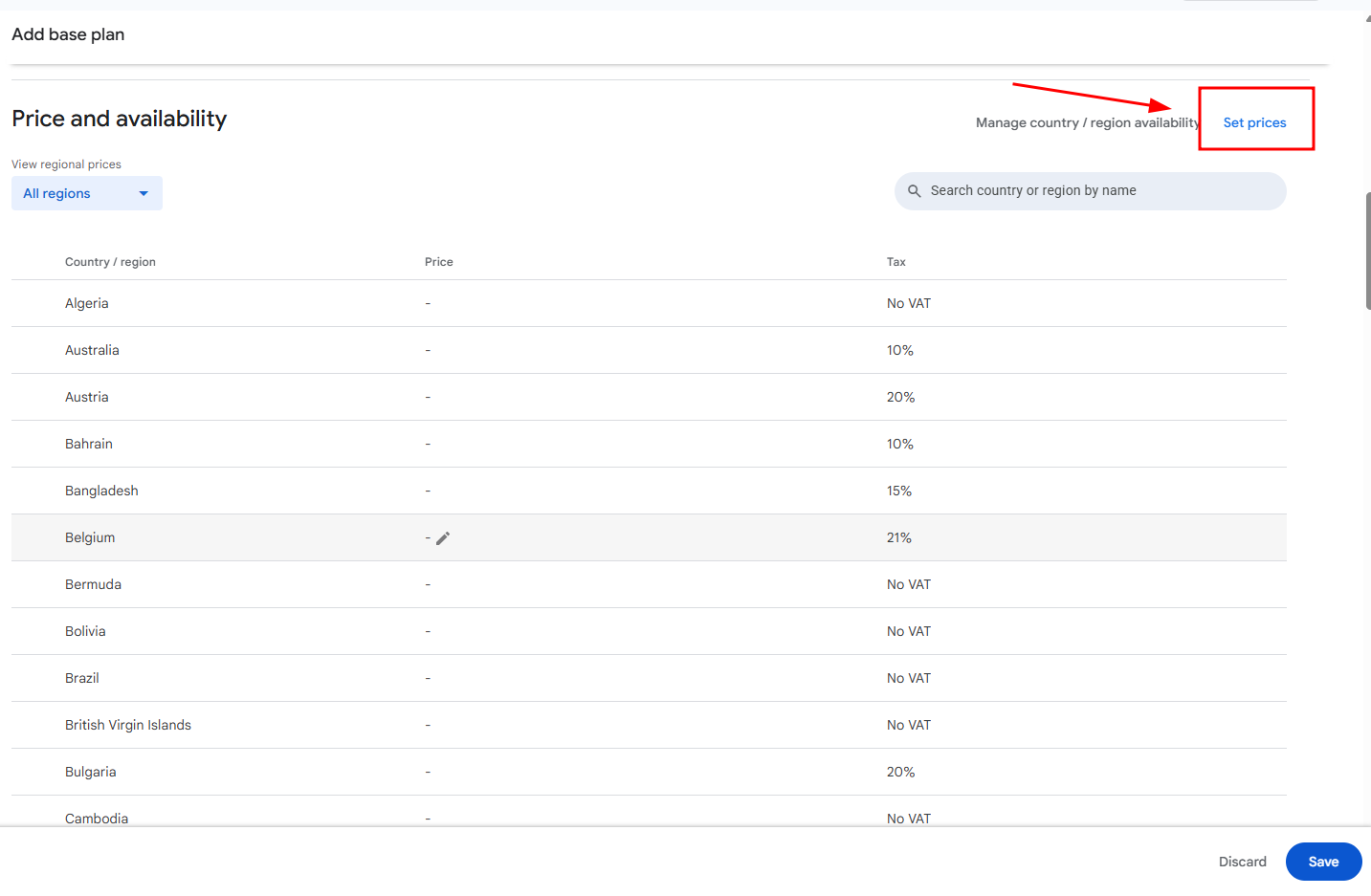
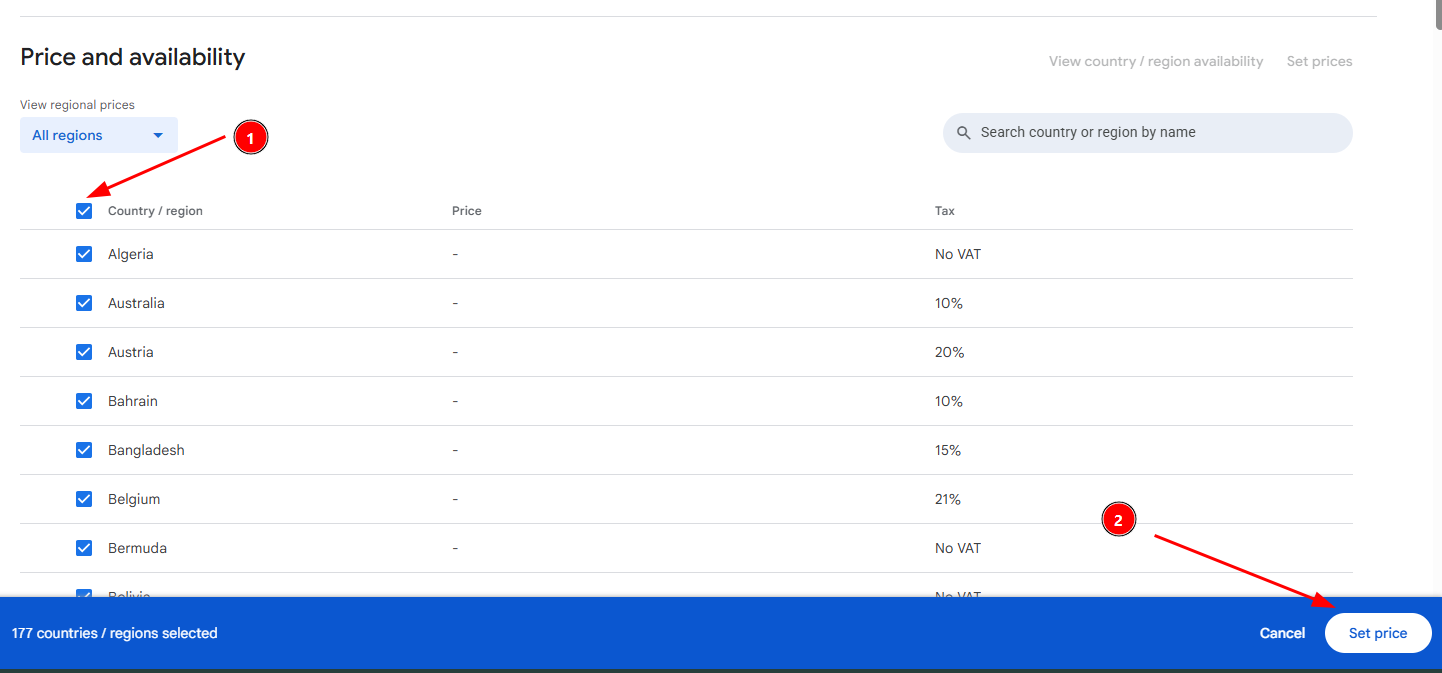
- Save the base plan and you should see it in the subscription details page.
- Click on the
Now the base plan is in DRAFT state, you can activate it to make it available for purchase by users. You can also setup offers for your subscription if needed. Read the official Google documentation for more details on how to set up subscriptions in Google Play Console: Subscriptions.
Creating One-Time Products
Section titled “Creating One-Time Products”To create a one-time product in Crosspay, you need to first set up the in-app product in Google Play Console, and then link it to an entitlement in Crosspay.
To create a one-time product in Google Play Console, follow these steps:
- Go to Google Play Console > Select your app, on the sidebar go to Monetize with Play > Products > One-time products.
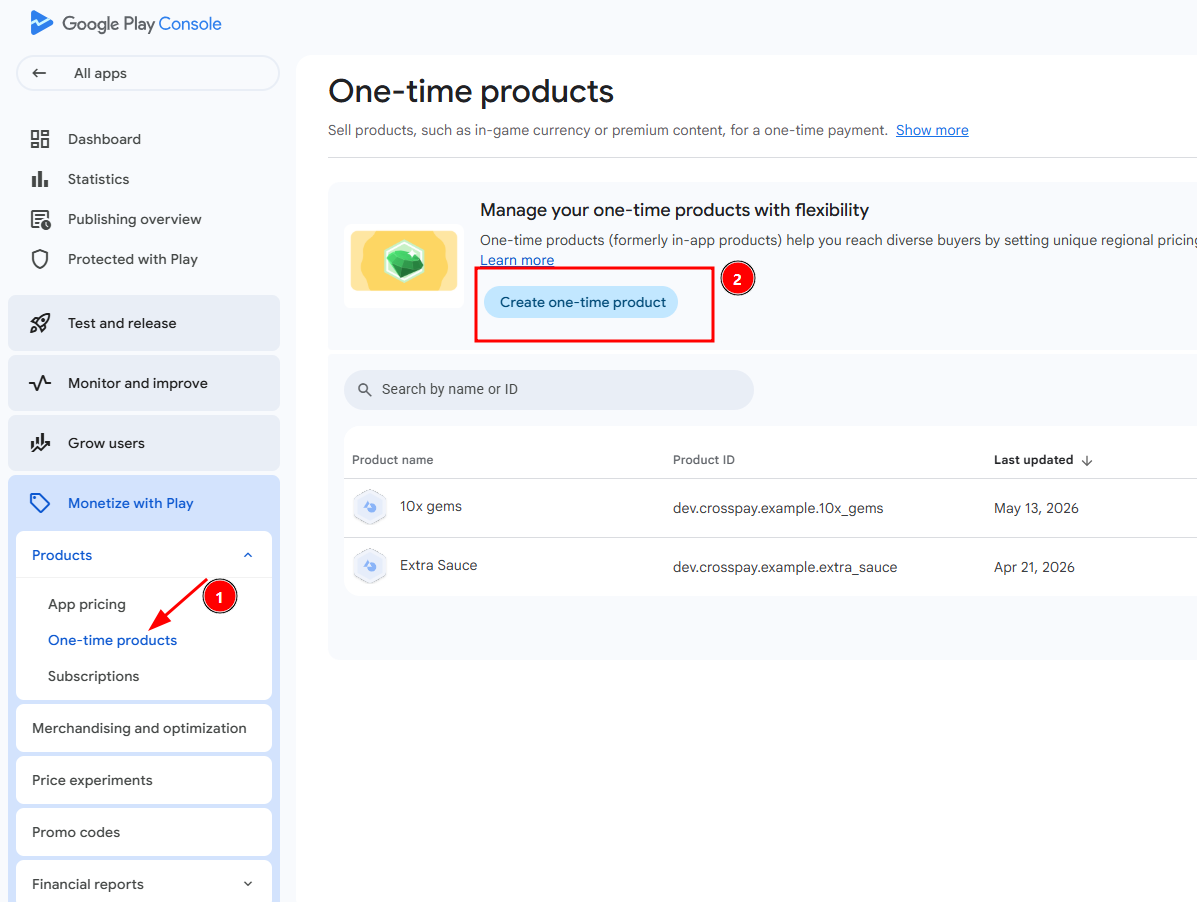
- Click on the
Create one-time productbutton. A form in a new page will open- For
Product ID: use a unique identifier that you will use to link this one-time product to an entitlement in Crosspay, e.g.com.example.example.100_coinsorcom.example.example.lifetime_access. - For
Name: a good reference name for your one-time product, e.g.100 CoinsorLifetime Access. - Fill out the description and give an icon if you want.
- Press
Nextand to create a price, click onAdd purchase option - For
Purchase IDuse a unique identifier for the purchase option, e.g.100_coins_option - Make sure
Purchase Typeis set toBuy - Now set the price for the purchase option by clicking on the
Set pricebutton thenBulk Editing - Select All the nations using the top checkbox or select them one by one
- Press
Continueon bottom right corner which will open the price dialog - Set the price and select the base currency
- Apply the price and you should see it in the purchase option details page.
- Finally, save the one-time product and you should see it in the list of one-time products.
- For
Now the one-time product is in DRAFT state, you can activate it to make it available for purchase by users. You can also add offers for your one-time product if needed. Read the official Google documentation for more details on how to set up one-time products in Google Play Console: One-time products.